An ICO file can hold several icon sizes in one container. IconToGo converts ICO to PNG locally: open the .ico, extract each frame, and download a single PNG or a ZIP of all sizes. Nothing is uploaded — Canvas and JavaScript run on your device. Free, no signup, no paywall. Need the reverse? Build a multi-size icon with PNG to ICO or the Icon Converter.
ICO only — frames stay on your device
ICONDIR entries are read in-browser. PNG-in-ICO and BMP-in-ICO frames become downloadable PNGs.
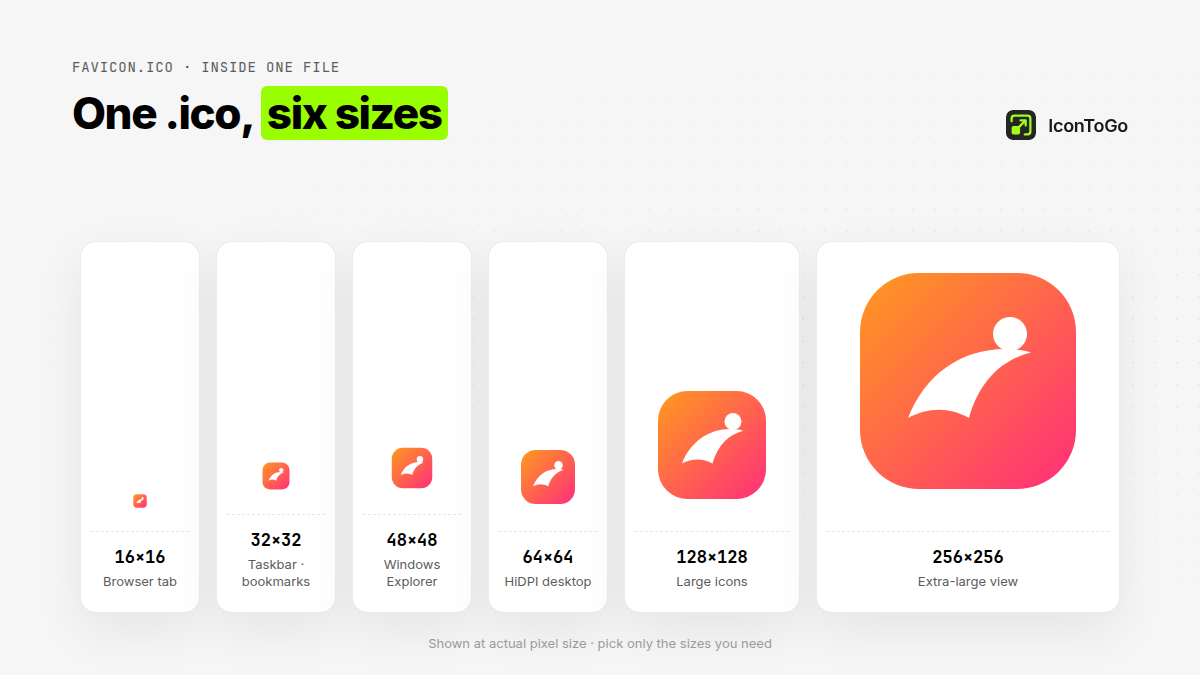
Preview 16×16 through 256×256 (and custom sizes) so you pick the exact frame you need.
Download a single PNG per frame, or one ZIP containing every extracted size.
Free ICO to PNG with no account — logos stay on your machine.
Open this page, drop a .ico onto the dropzone (or choose a file), and wait a moment while IconToGo parses the container in your browser. You will see a preview for every embedded size. Download one PNG per frame, or grab a ZIP of all PNGs in one click. That is the full ICO to PNG workflow: no account, no email gate, and no upload of your icon to a conversion server. Soft size guidance is about 10 MB; processing uses a pure JavaScript ICO parser plus Canvas encoding so frames never leave the device for conversion.
Three steps cover almost every case: (1) drop the ICO, (2) review the frame grid so you know which resolutions are stored, (3) download the PNG or ZIP you need. If you only want the sharpest mark for a design tool, pick the largest frame. If you are auditing a favicon pack, take the ZIP so 16×16, 32×32, 48×48, and larger sizes stay labeled and separate.
An .ico is not a single flat bitmap the way a typical PNG is. It is a small container (ICONDIR / ICONDIRENTRY structure) that can store several images—commonly called frames—at different widths and heights. Classic Windows icons often mix BMP-style DIB payloads; modern favicon-style ICOs frequently embed PNG payloads inside the same file. “Extract ICO frames” means reading each directory entry and writing that payload out as its own PNG, preserving the stored dimensions instead of resampling one thumbnail into every size.
According to the Wikipedia ICO file-format article, a single ICO may include multiple images so the OS or browser can pick an appropriate resolution. MDN’s favicon glossary likewise notes that sites often expose several icon resources. IconToGo’s local extractor surfaces those resources as downloadable PNGs so you see what is actually inside the file—useful when a vendor shipped one ICO and you need the 256×256 art without opening a desktop icon editor.
Direction matters. Use ICO to PNG when you already have a .ico and need the stored bitmaps for design, documentation, or re-export—extract frames, then edit or publish the PNGs. Use PNG to ICO (or JPG to ICO) when you start from a raster logo and need to build a multi-size .ico for Windows shortcuts or classic favicon.ico packaging. IconToGo keeps those jobs on separate pages so the tool UI stays focused: this page only accepts ICO input and only exports PNG / ZIP.
Quick rule of thumb: if the file ends in .ico and you want transparent PNGs out, stay here. If you have a master PNG/JPG/WebP/SVG and need an ICO pack in, open PNG to ICO, JPG to ICO, or the general Icon Converter. For a full website favicon.zip with HTML <link> tags, prefer the Favicon Generator. Mixing the directions is the most common reason people think a converter “lost” sizes—they re-encoded one PNG into a new ICO instead of extracting the original frames.
CloudConvert and similar online converters are convenient when you already trust a cloud pipeline and want many format pairs in one account. Their ICO to PNG flows typically upload your file so a remote worker can decode and re-encode it. That is fine for public stock icons; it is a poor fit for unpublished brand marks, client assets under NDA, or machines that should not send binaries to third-party storage.
IconToGo is a browser-local ICO to PNG converter: the parser runs in JavaScript, frames are decoded on-device, and PNG downloads are generated with Canvas—there is no icon upload API. You still load the page over the network (scripts and styles), but the .ico itself is not posted for conversion. Prefer CloudConvert-class tools when you need batch cloud jobs, API automation, or exotic format chains; prefer IconToGo when local / no upload / extract frames is the priority and a free, no-signup extractor is enough.
Yes. After parsing, IconToGo lists each frame it finds—commonly 16×16, 32×32, 48×48, 64×64, 128×128, 256×256, plus any custom sizes the author embedded. Download a single PNG when you only need one resolution, or use Download ZIP of all PNGs to take every frame in one archive. Transparency is preserved when the source frame carries an alpha channel (PNG-in-ICO or 32-bit BMP-in-ICO). You do not “lose sizes” by extracting: each stored frame becomes its own file. What you will not invent are sizes that were never packed into the ICO—if the container only holds 16 and 32, those are the PNGs you get; rebuild missing sizes from a larger master with the Icon Converter if you need a fuller pack.
In short: drop an ICO, extract frames locally, download one PNG or a ZIP of every size, without uploading the icon. It is free and needs no account.
Drop your .ico onto this page. IconToGo parses every embedded frame in your browser, previews each size, and lets you download one PNG or a ZIP of all frames — nothing is uploaded.
An .ico can hold several bitmaps at different sizes. Extracting frames pulls each embedded size out as its own PNG instead of guessing a single resize.
Use this page to split an existing .ico into PNGs. Use PNG to ICO or the Icon Converter to build a multi-size .ico from a raster image.
CloudConvert-style tools usually upload your file to convert it in the cloud. IconToGo runs locally in the browser with no upload API for your icon.
Yes. The frame grid lists every size found; download one PNG per frame or a ZIP of all PNGs.
No account, no email, no paywall — support@icontogo.com if you need help.
 IconToGo